How to Create AI Notes in Zoom With Meeting Summary or My Notes
Desktop and mobile steps for Zoom's Meeting Summary and My Notes, where the notes go after the call, who can see them, fixes for a missing AI option, and when Fathom, Otter or Jamie fits better.
 Stanislav VovchykNov 25, 202610 min read
On this page · 8 sections
- 1. Meeting Summary or My Notes: which one fits the meeting
- 2. Turn on Zoom AI Companion before the meeting
- 3. Start Meeting Summary during a call, on desktop and mobile
- 4. Create a personal note with My Notes
- 5. Why the AI Companion or My Notes option is missing
- 6. Consent and data: who sees what
- 7. When a third-party notetaker beats Zoom's built-in tools
- 8. FAQ
In short
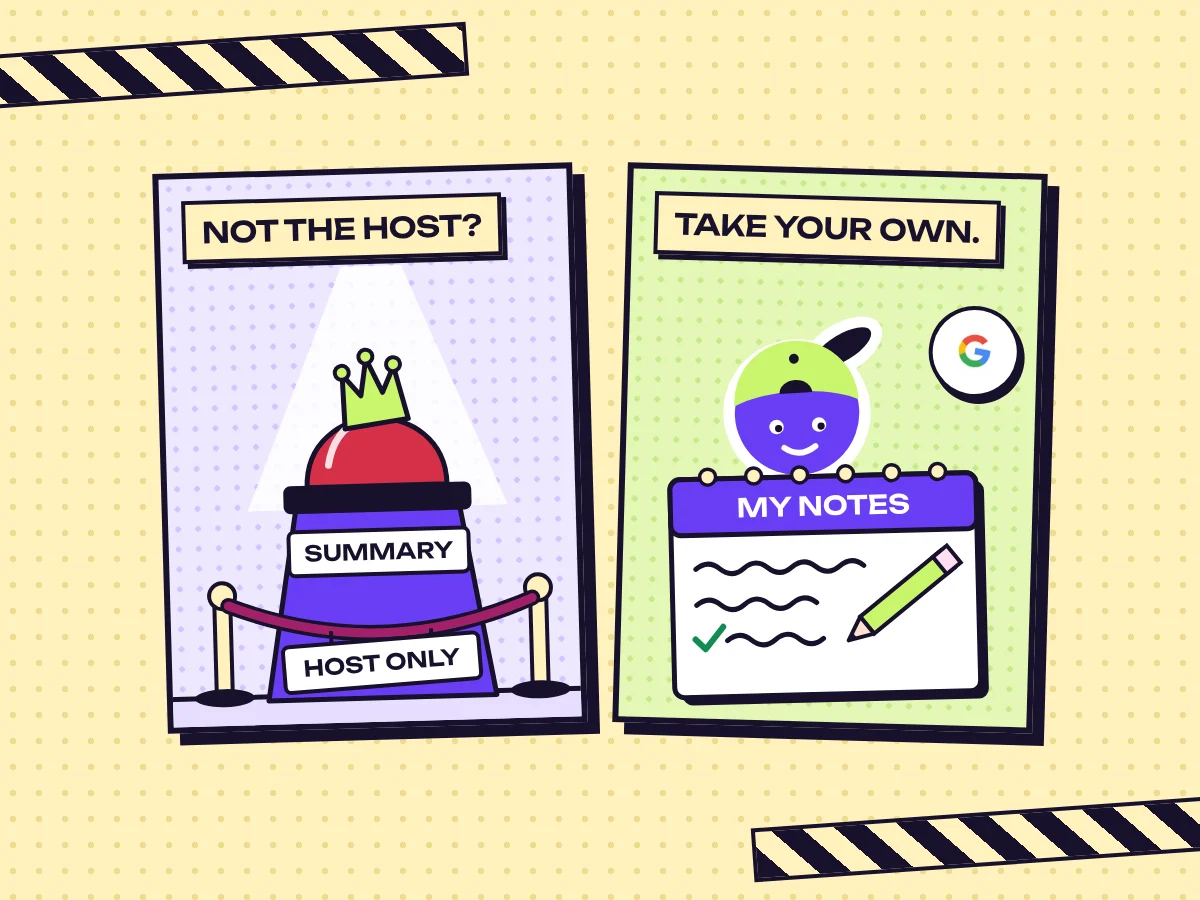
- The host starts Meeting Summary from the Zoom AI icon for a shared recap, while anyone can use My Notes for a personal transcript-based note without a bot.
- My Notes is the only option for participants, in-person meetings, or calls on Microsoft Teams and Google Meet, and it needs Zoom client 6.7.5 or higher.
- If options are missing, check that Meeting Summary is on in Settings > AI Companion, since admins control it and free Basic accounts may lack access.
- For a free alternative, Fathom lists unlimited recordings and transcriptions but joins as a bot outside its Mac beta, while Otter's free plan caps conversations at 30 minutes.
AI can take notes in a Zoom meeting, and Zoom has two ways built in. The host starts Meeting Summary from the Zoom AI icon, and Zoom sends a shared recap afterward. For a personal record, use My Notes, a notepad with live transcription that Zoom says also works in Microsoft Teams, Google Meet and in-person meetings without a bot. Free Basic accounts may get limited access or none, so check the plan question in the setup section before you rely on either one. For a free option outside Zoom, Fathom's free plan lists unlimited recordings and transcriptions, but it joins the call as a bot unless you're in its Mac beta for bot-free capture.
Meeting Summary or My Notes: which one fits the meeting
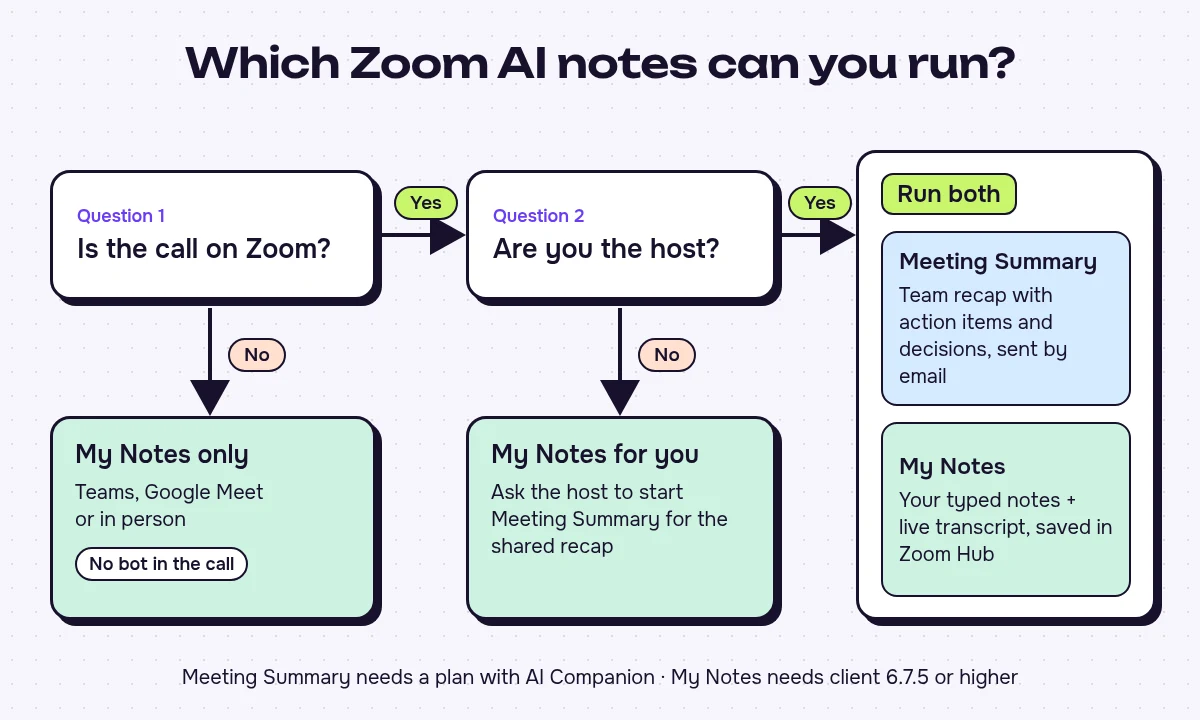
| Meeting Summary | My Notes | |
|---|---|---|
| Who starts it | The host | Any user, for themselves |
| Where it works | Zoom meetings only | Zoom, Microsoft Teams, Google Meet, in person |
| Bot in the call | No, it runs inside Zoom | No |
| What you get | Structured recap with action items and decisions | Your typed notes plus a live transcript, then a summary and next steps |
| Where it lands | Post-meeting email and the summary tab in the Zoom web portal | Zoom Hub, under My Notes |
| What it requires | A plan that includes AI Companion, with Meeting Summary switched on in Settings > AI Companion | Client 6.7.5 or higher, transcription allowed in Settings > Notes > My Notes; Zoom prices My Notes on a separate page |
| Best for | A team recap everyone receives | A personal record, or meetings Zoom doesn't host |
If you're a participant, or the call is on Teams or Meet, or you're sitting in a conference room, My Notes is the only one of the two you can run. You can also use both: the host turns on the shared recap and you keep your own annotated notes in My Notes. I'd run both on client calls, where a group recap is usually too general for individual follow-up.
Turn on Zoom AI Companion before the meeting
Meeting Summary won't show up in a meeting until it has been switched on in the web portal.
- Sign in to the Zoom web portal. Admins sign in with the admin account.
- Go to Settings, then the AI Companion tab.
- Switch on Meeting Summary.
- Save.
On a company account only the admin can change this, and their setting overrides yours.
What to ask Zoom about your plan. Zoom's note-taking page points readers to its plans and pricing page to see which plans include My Notes, and My Notes also has a pricing page of its own, so the two features may not come with the same plan. Before you build a recurring meeting around either one, put this to Zoom sales or your account admin: "Does my plan include Meeting Summary and My Notes, is there a monthly cap on summaries or transcription, and what, if anything, does the free Basic plan get?" If your team will depend on a cap, get the answer in writing.
Start Meeting Summary during a call, on desktop and mobile
Desktop app
- Start the meeting as host.
- Hover over the Zoom AI icon in the top-right corner of the meeting window.
- Tick the Meeting summary checkbox.
- Click Start Zoom AI.
- After the call, the host and the other recipients get the recap by email. The full version sits in the summary tab of the web portal, where the host can edit it and share it.
Mobile app
- Start the meeting as host.
- Tap the Zoom AI icon.
- Turn on the Meeting summary toggle.
A participant who wants a summary has to ask the host to start it. If the meeting is over and the email never reached you, ask the host to open the summary tab and forward the recap.
Create a personal note with My Notes
Zoom lists client version 6.7.5 or higher for all My Notes features. Update the app first if yours is older, or parts of the feature may be missing.
Desktop, inside a Zoom meeting
- Click the My Notes icon in the meeting window. You can also open the Zoom AI side panel and use the prompt "Create a meeting note for me".
- Type your own notes as the meeting goes on.
- Turn on transcription so Zoom's AI captures what's said in real time. Zoom shows participants a visible indicator while it runs.
- After the call, My Notes uses the transcript and your typed notes to produce a summary and next steps.
- Open the note in Zoom Hub, under My Notes. You can edit it there, add your own text next to the AI summary, and share it with colleagues.
Mobile app
Update the Zoom mobile app to 6.7.5 or later, then open My Notes from the meeting controls the same way as on desktop.
Teams, Google Meet or in person
No bot joins the call when you run My Notes outside Zoom. That helps when the host company blocks outside notetaker bots, or when a client doesn't want an extra name in the participant list.
Transcription permissions
If transcription won't switch on, go to Settings > Notes > My Notes in the web portal. On a company account, an admin may have restricted it there.
Why the AI Companion or My Notes option is missing
| Symptom | Likely cause | Fix |
|---|---|---|
| No Meeting summary option in the meeting | Meeting Summary is off in Settings > AI Companion | Turn it on in the web portal, then start or rejoin the meeting |
| Your personal toggle is greyed out | Your admin controls the setting for the account | Ask your Zoom admin to switch it on under Settings > AI Companion |
| You see the Zoom AI icon but can't start a summary | You're a participant, not the host | Ask the host to start it, or use My Notes for your own record |
| My Notes features missing or partial | Client older than 6.7.5 | Update the Zoom desktop or mobile app |
| Transcription won't switch on in My Notes | Restricted under Settings > Notes > My Notes | Change the setting, or ask your admin |
| Meeting ended with no summary email | Summary was never started, or you weren't a recipient | Check the summary tab in the web portal, then ask the host |
| Options missing on a free Basic account | Your plan may not include AI Companion | Check your plan details in the web portal for AI Companion; if it isn't included, use Fathom or Tactiq's free plan |
Consent and data: who sees what
Inside a Zoom meeting, My Notes shows a banner and a transcription indicator while it transcribes, and an icon in the participant list marks who is using it. In Teams, Google Meet and other platforms, Zoom says My Notes gives participants no Zoom indicator at all, and the host has no Zoom control to ask you to stop. Only you see a tooltip reminding you to follow applicable laws, which may mean telling everyone on the call. So say it yourself at the start. The same applies to bot-free apps such as Granola, Tactiq and Jamie, which don't show up in the participant list. Where the law requires everyone's consent to record, say so at the start of the call, whatever tool you use.
Before sensitive calls go through any of these tools, I'd ask the admin two things: how long summaries and transcripts are kept on your account, and who in your organization can open a summary that has been shared.
When a third-party notetaker beats Zoom's built-in tools
If your team already pays for Zoom and most meetings happen there, I'd stick with Zoom's own tools: no extra vendor and no bot in the call. A separate app makes sense if you're rarely the host, if you need one archive across Zoom, Teams and Meet that feeds a CRM, or if you mainly host on a free Zoom account. In that last case, the free third-party plans below don't depend on what Zoom Basic includes, and each publishes its limit, so you know before the meeting whether it will be captured.
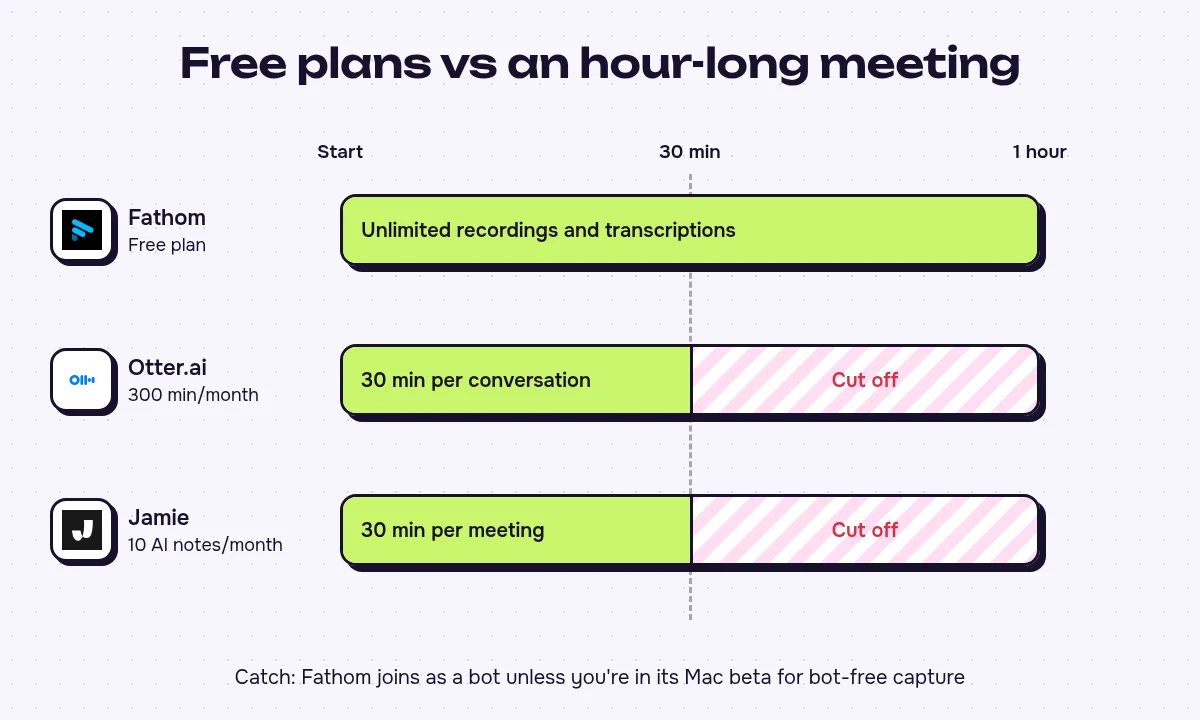
Here is how five common picks compare in our catalogue:
| Tool | Free plan limit | Cheapest paid plan | Trains on your content |
|---|---|---|---|
| Fathom | Unlimited recordings and transcriptions | $15/mo billed annually (Team) | Yes, opt-out available |
| Otter.ai | 300 min/month, 30 min per conversation | $8.33/user/mo billed annually | Yes |
| Granola | Meeting history limited to 30 days | $14 (Business) | Yes, opt-out available |
| Tactiq | 10 transcripts/month, 1 user | $8 | No |
| Jamie | 10 AI notes/month, 30 min per meeting | $24/mo | No |
I'd pick Fathom if you host a lot of calls on a free budget. It's the only tool on that list whose free plan lists unlimited recordings and transcriptions. Our Fathom review covers the catch: bot-free capture is still in beta on Mac, so everywhere else Fathom joins the call as a bot. Fathom also trains on customer content unless you opt out, so switch that off before client calls.
I wouldn't put client calls through Otter's free plan. It caps each conversation at 30 minutes, which cuts off an hour-long meeting halfway, and Otter's privacy terms say it trains on customer content. Its paid plans suit sales teams better, since Otter offers CRM follow-ups.
Granola and Tactiq don't put a bot in the call, the same as My Notes. Granola's free tier keeps only 30 days of history and has no Notion, Zapier or HubSpot integrations. Tactiq is the cheaper bot-free option at $8, and it says it doesn't train on customer content.
For in-person meetings, I'd use My Notes if your company already pays for Zoom. Without Zoom, I'd look at Jamie. It captures online and in-person meetings, hosts data in the EU and says it doesn't train on your content. On the free plan, the 30-minute meeting limit cuts off longer workshops.
For shared notes across a whole team, look at Fireflies.ai. Its free plan gives 400 minutes of storage per team and 20 AI credits. Pro costs $10 per seat a month billed annually, and Fireflies says it doesn't train on customer content. The Fireflies review explains where those AI credits run out.
FAQ
Can I change what a Zoom Meeting Summary includes? Yes. Zoom's Meeting Summary feature page says admins and users can build custom summary templates in Zoom AI Studio. A template sets the sections, level of detail, terminology and intended audience. That's useful for a team that wants the same structure every week, such as decisions, owners and deadlines, instead of a general recap.
Is there a notetaker that keeps the audio on my own computer? There are two open-source options. OpenWhispr offers unlimited local dictation with on-device models. Its free cloud tier includes 5 hours of meeting recordings a month, and Pro costs $6.67 per user a month billed annually. Meetily records and summarizes on your device, using a local model by default or your own API key. Its Pro plan adds speaker identification and custom templates for $10 per user a month billed yearly. Both say they don't train on customer content.
My team keeps everything in Notion. Should I use Zoom's notes at all? If the team already pays for Notion, I'd try Notion AI's meeting notes first, because the notes land next to the project pages they belong to. The free Notion plan includes only a limited trial of Notion AI, so budget for Plus at $10 per member a month. Notion says it doesn't train on customer content. Keep Zoom's Meeting Summary for calls where everyone, including people outside Notion, needs the recap in their inbox.
Tools in this article 9







Written by
Stanislav Vovchyk
Founder and editor of infobro.ai
I run infobro.ai: I decide what it covers and how tools are evaluated.
I research every tool from its documentation, pricing pages, product screenshots and public developer discussion, and say plainly what the evidence does and does not show.
More guides